

SSO is available on Enterprise plans.
Set up SSO
Okta
Configure Okta SSO in your Mintlify dashboard
- In your Mintlify dashboard, navigate to the Single Sign-On page.
- Click Configure.
- Select Okta SAML.
- Copy the Single sign on URL and Audience URI.
Create a SAML app in Okta
- In Okta, under Applications, create a new app integration using SAML 2.0.
-
Enter the following from Mintlify:
- Single sign on URL: the URL you copied from your Mintlify dashboard
- Audience URI: the URI you copied from your Mintlify dashboard
- Name ID Format:
EmailAddress
-
Add these attribute statements:
Name Name format Value firstNameBasic user.firstNamelastNameBasic user.lastName
Copy the Okta metadata URL
In Okta, go to the Sign On tab of your application and copy the metadata URL.
Microsoft Entra
Configure Microsoft Entra SSO in your Mintlify dashboard
- In your Mintlify dashboard, navigate to the Single Sign-On page.
- Click Configure.
- Select Microsoft Entra ID SAML.
- Copy the Single sign on URL and Audience URI.
Create an enterprise application in Microsoft Entra
- In Microsoft Entra, navigate to Enterprise applications.
- Select New application.
- Select Create your own application.
- Select “Integrate any other application you don’t find in the gallery (Non-gallery).”
Configure SAML in Microsoft Entra
- In Microsoft Entra, navigate to Single Sign-On.
- Select SAML.
- Under Basic SAML Configuration, enter the following:
- Identifier (Entity ID): the Audience URI from Mintlify
- Reply URL (Assertion Consumer Service URL): the Single sign on URL from Mintlify
Configure Attributes & Claims in Microsoft Entra
- In Microsoft Entra, navigate to Attributes & Claims.
- Select Unique User Identifier (Name ID) under “Required Claim.”
- Change the Source attribute to
user.primaryauthoritativeemail. - Under Additional claims, create the following:
Name Value firstNameuser.givennamelastNameuser.surname
Copy the Microsoft Entra metadata URL
Under SAML Certificates, copy the App Federation Metadata URL.
JIT provisioning
When you enable JIT (just-in-time) provisioning, users who sign in through your identity provider are automatically added to your Mintlify organization. To enable JIT provisioning, you must have SSO enabled. Navigate to the Single Sign-On page in your dashboard, set up SSO, and then enable JIT provisioning.Change or remove SSO provider
- Navigate to the Single Sign-On page in your dashboard.
- Click Configure.
- Select your preferred SSO provider or no SSO.
Other providers
For providers other than Microsoft Entra or Okta SAML, contact us to configure SSO.Google Workspace (SAML)
Create an application
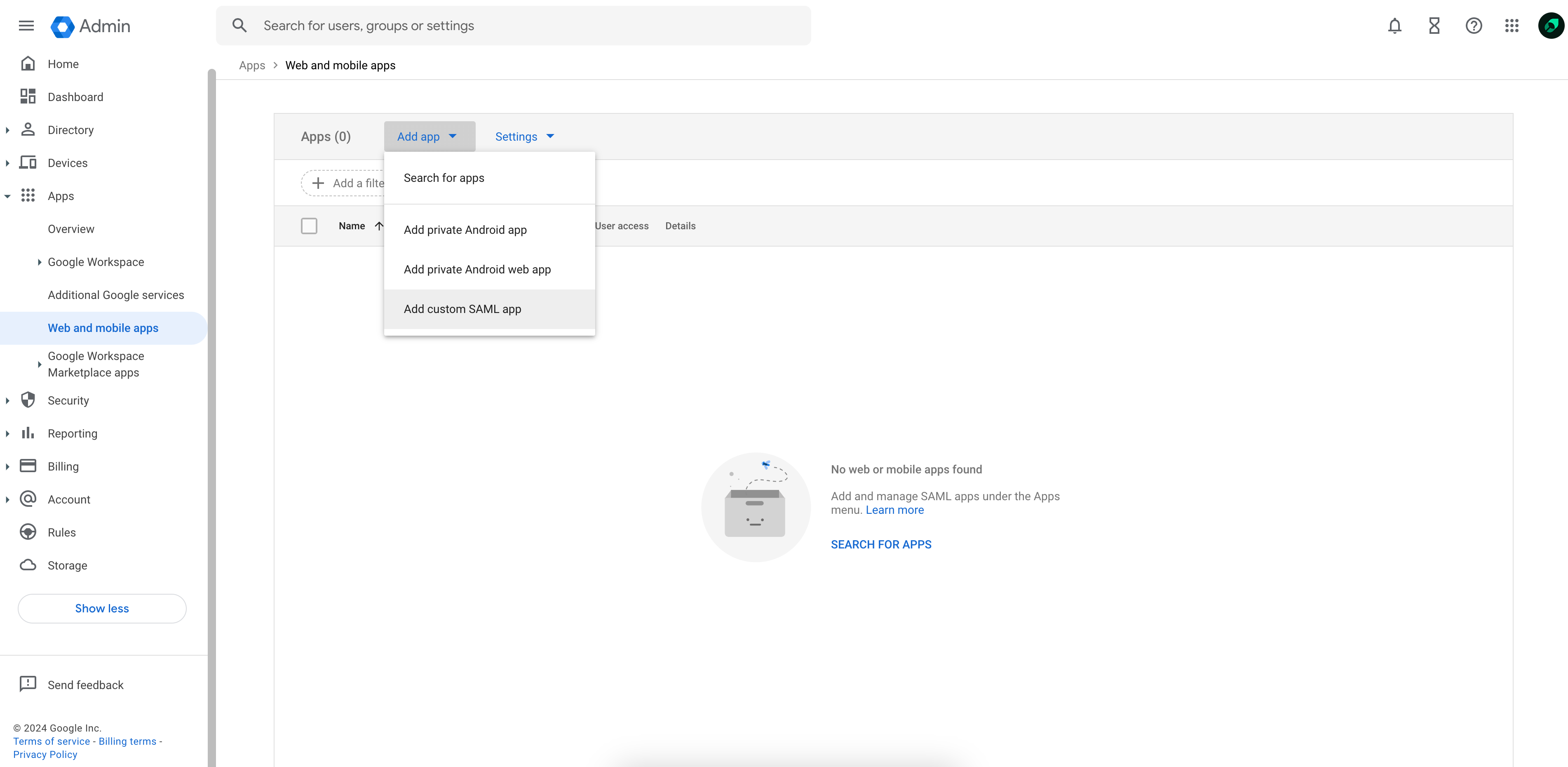
- In Google Workspace, navigate to Web and mobile apps.
- Select Add custom SAML app from the Add app dropdown.
Send us your IdP information
Copy the provided SSO URL, Entity ID, and x509 certificate and send it to the Mintlify team.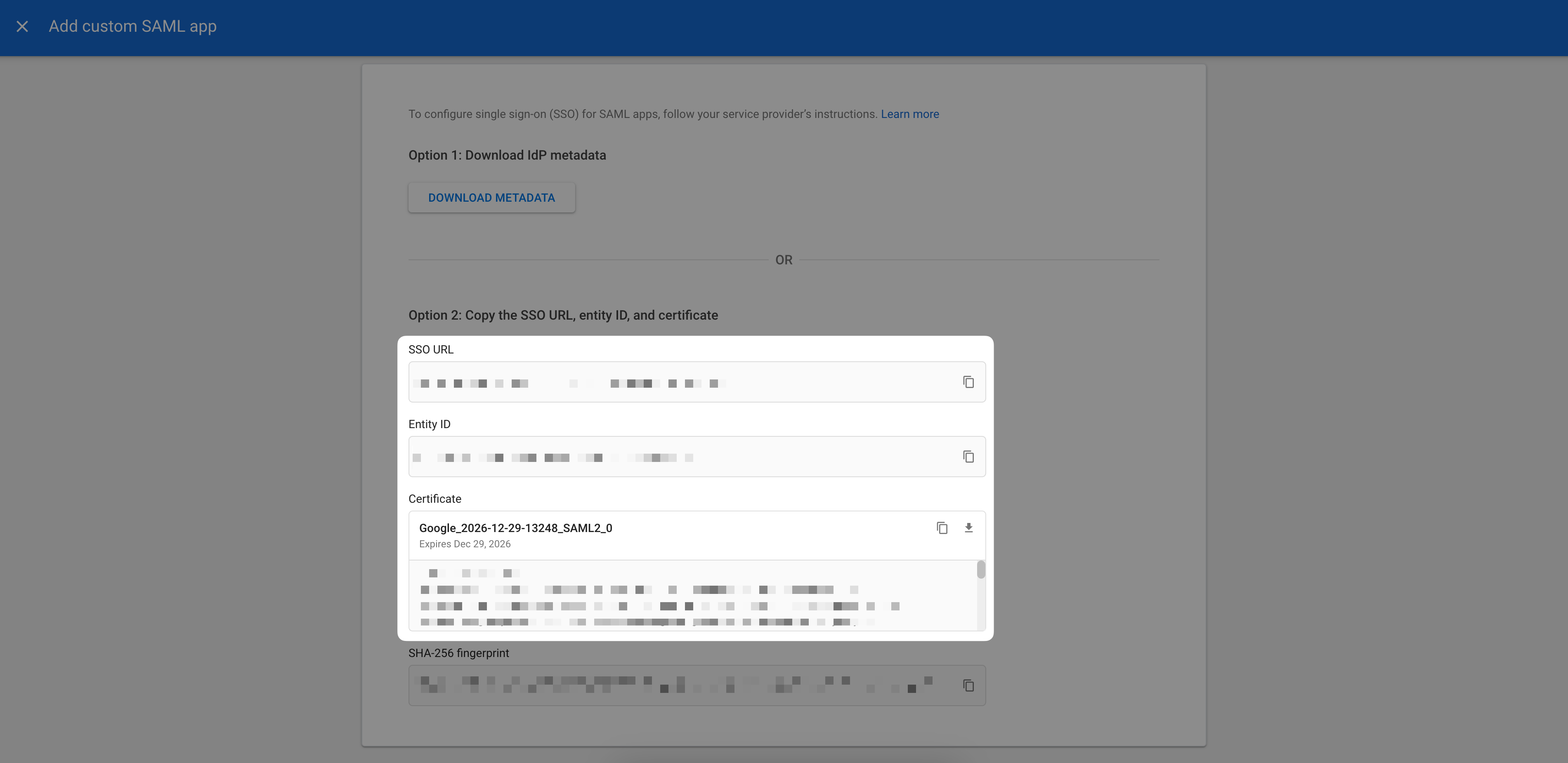
Configure integration
On the Service provider details page, enter the following: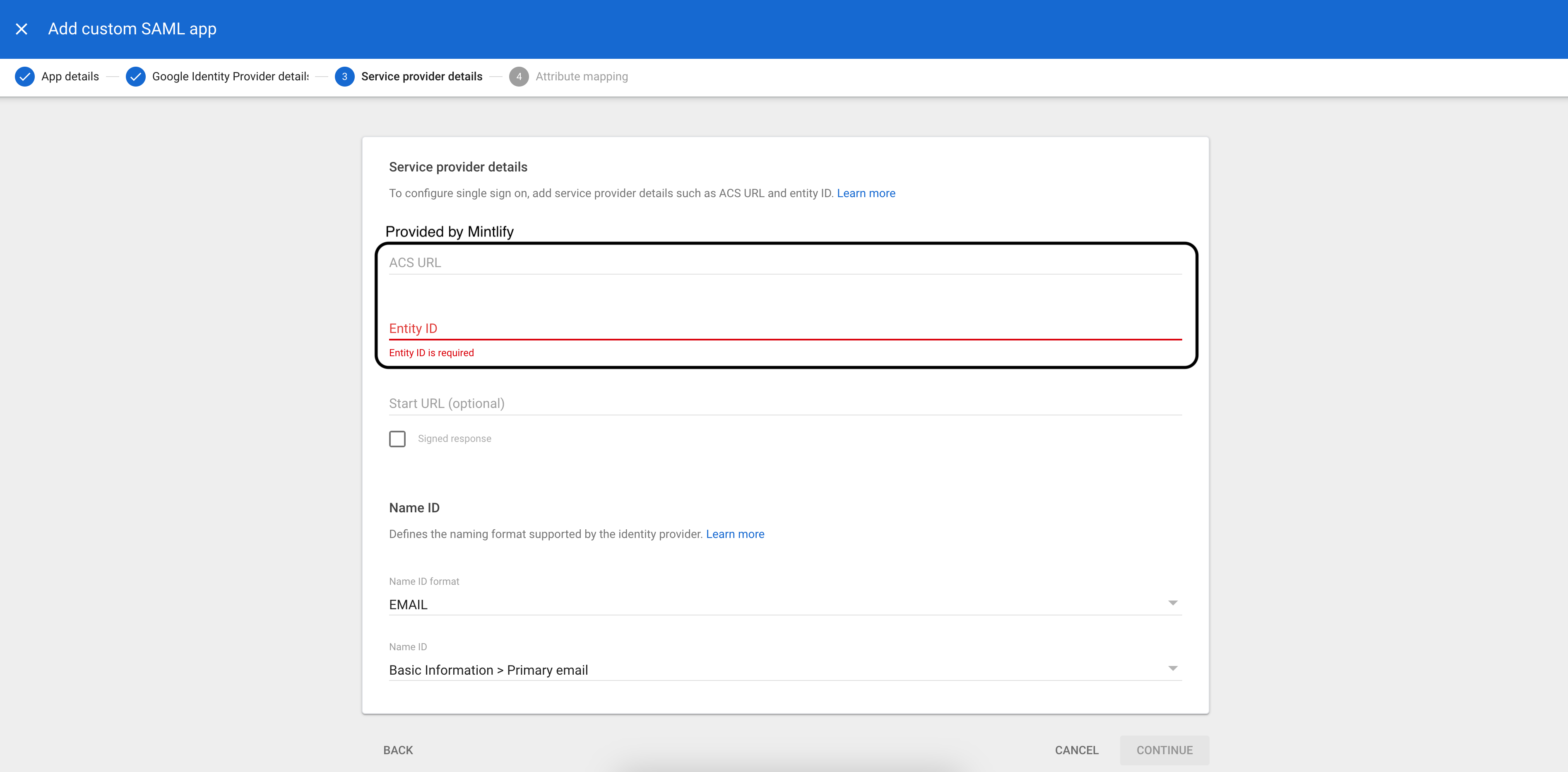
Once this step is complete and users are assigned to the application, let our team know and we’ll enable SSO for your account.
- ACS URL (provided by Mintlify)
- Entity ID (provided by Mintlify)
- Name ID format:
EMAIL - Name ID:
Basic Information > Primary email
| Google Directory Attribute | App Attribute |
|---|---|
First name | firstName |
Last name | lastName |
Okta (OIDC)
Create an application
In Okta, under Applications, create a new app integration using OIDC. Choose the Web Application application type.
Configure integration
Select the authorization code grant type and enter the Redirect URI provided by Mintlify.